

How to Replace Brother Toner Cartridge: Signs, Steps, and Troubleshooting Tips
To replace a Brother toner cartridge, keep the printer on, open the appropriate cover, remove the toner-and-drum assembly, release the old toner, and install the new cartridge securely. Brother printer designs vary, so check your exact model’s instructions before starting and do not confuse toner replacement with drum replacement.
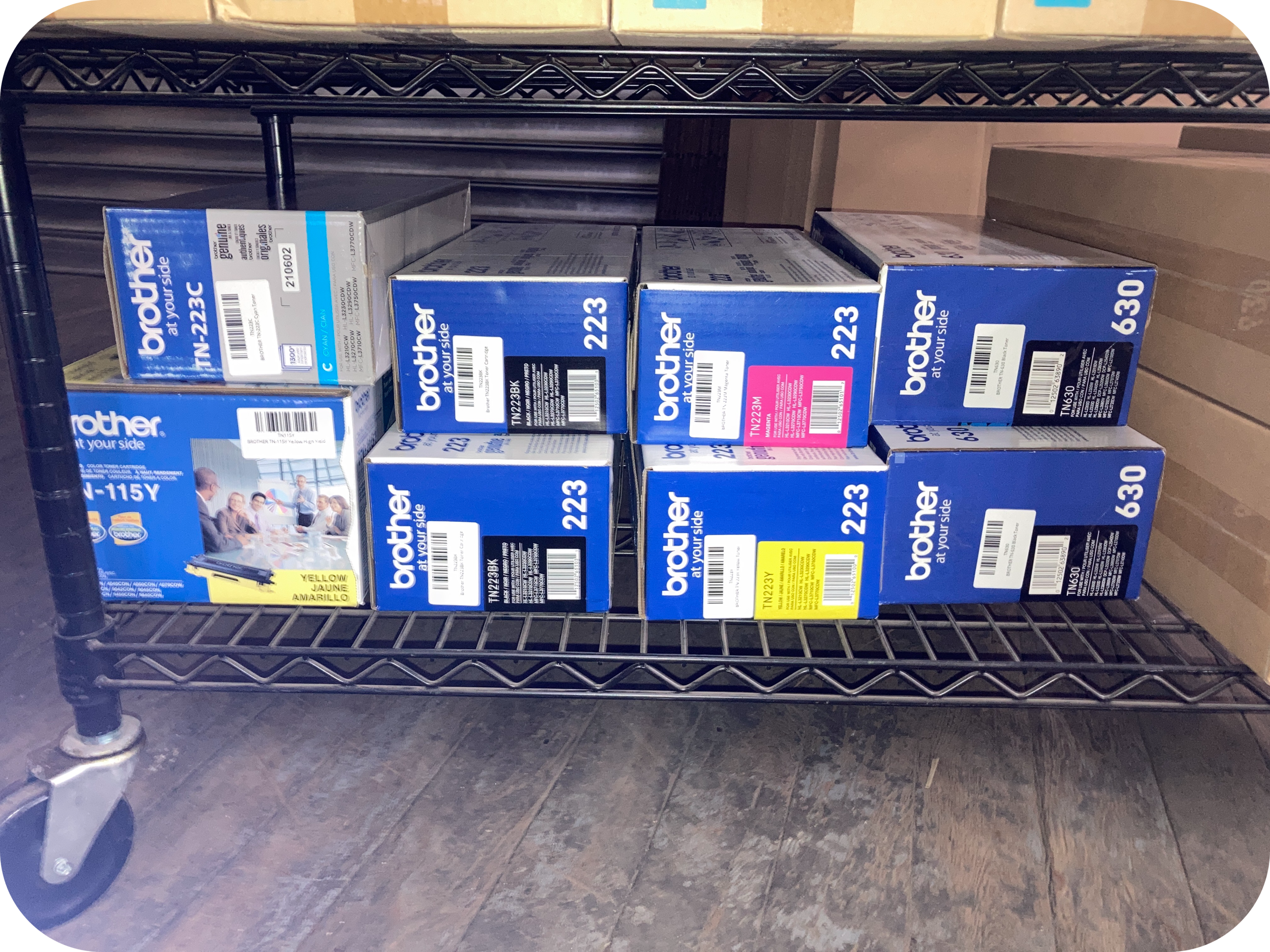
When Should You Replace a Brother Toner Cartridge?
Replace a Brother toner cartridge when the printer displays a Replace Toner message or the model-specific instructions indicate that the cartridge has reached the end of its life.
Brother states that “Replace Toner” means the toner cartridge has reached its end of life on supported models. Some Brother printers stop printing when this condition is reached.
A Toner Low warning is different. Brother says this warning indicates that the cartridge is approaching the end of its life on supported models.
Common messages include:
- Toner Low
- Replace Toner
- Toner Ended
- Toner Life End
The exact wording depends on the Brother printer model.
What Is a Brother Toner Cartridge?
A Brother toner cartridge is a replaceable consumable that supplies toner powder to a compatible Brother laser or LED printer.
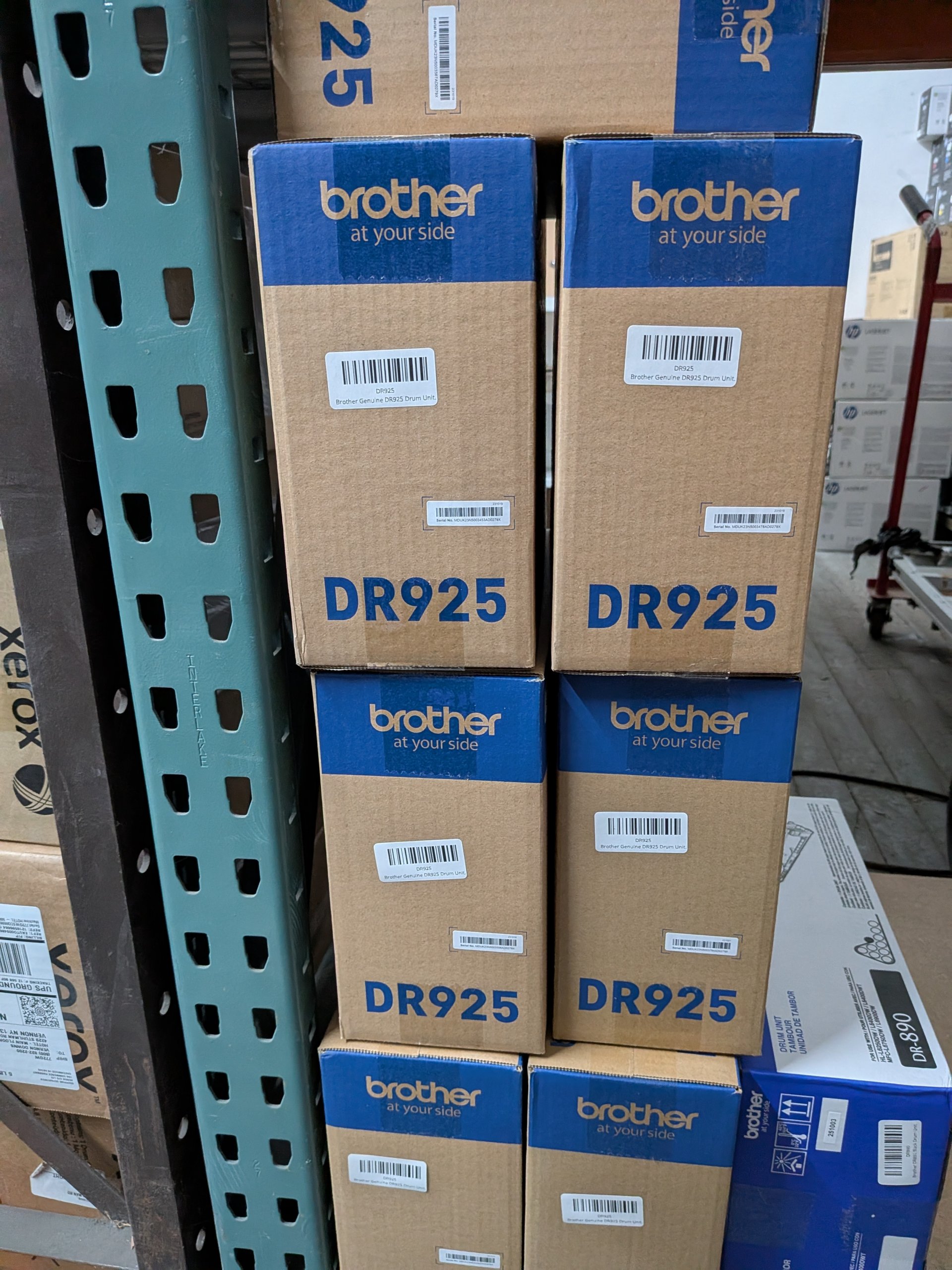
The toner cartridge and drum can be separate consumables in many Brother printers. Brother specifically warns users not to replace the drum when only the toner needs replacement.
Simple definitions:
- Toner cartridge: The replaceable component containing toner powder.
- Drum unit: The imaging component that works with toner to create the printed page.
- OEM toner: A cartridge made or branded by the original equipment manufacturer.
- Corona wire: A component in certain Brother drum assemblies that may need cleaning during cartridge replacement.
Knowing these terms makes Brother’s replacement instructions much easier to follow.
Is a Brother Toner Cartridge the Same as the Drum Unit?
No, many Brother printers use a toner cartridge and drum unit as separate consumable components.
Brother explicitly tells users to replace only the toner when a supported machine displays Replace Toner. The same manufacturer provides separate instructions for replacing a drum.
This distinction prevents a common mistake.
Replace Toner = check or replace the toner cartridge.
Replace Drum = check or replace the drum unit.
Do not automatically buy both parts.
What Should You Check Before Replacing Brother Toner?
Confirm your exact printer model, cartridge part number, and warning message before opening a replacement cartridge.
Brother replacement procedures differ between models. For example, some monochrome machines require the complete toner-and-drum assembly to be removed before separating the cartridge.
Some color Brother printers instead use a drum assembly holding several toner cartridges.
Before starting:
- Read the printer’s display or Status Monitor.
- Record the exact Brother printer model.
- Verify the replacement toner part number.
- Check whether the printer uses a separate drum.
- Read Brother’s model-specific instructions.
- Keep the replacement cartridge packaged until needed.
A five-minute model check can prevent installing the wrong supply.
How Do You Replace a Brother Toner Cartridge Step by Step?
For many Brother monochrome printers, you remove the toner-and-drum assembly, separate the old toner from the drum, install the new toner, and return the complete assembly to the printer.
Brother’s instructions for models including the DCP-L2550DW use this basic sequence. Other Brother models can differ.
How Should You Prepare the Brother Printer?
Keep the printer turned on unless the instructions for your specific Brother model state otherwise.
Brother’s replacement instructions for several current and recent models begin with the machine turned on.
Place disposable paper on a clean, flat work surface.
Brother recommends this precaution for some models in case toner spills or scatters.
How Do You Remove the Toner and Drum Assembly?
Open the designated printer cover and carefully pull out the toner cartridge and drum assembly according to your model’s instructions.
On Brother’s DCP-L2550DW instructions, the user opens the front cover and removes the combined toner-and-drum assembly.
Avoid forcing the assembly.
If it does not move normally, check the manual before applying additional pressure.
How Do You Separate the Old Brother Toner From the Drum?
On many Brother monochrome models, press the green lock lever and lift the toner cartridge out of the drum unit.
Brother documents this procedure for the DCP-L2550DW and several related models.
Handle the components carefully.
Avoid touching sensitive areas shown as restricted in Brother’s model-specific diagrams.
How Do You Prepare the New Brother Toner Cartridge?
Remove the new cartridge from its packaging and remove the protective materials specified in your printer’s instructions.
Brother’s DCP-L2550DW procedure requires users to remove the protective cover before installing the new toner.
Some Brother models also instruct users to gently move the cartridge from side to side before installation.
Follow your exact model’s instructions rather than assuming this step applies universally.
How Do You Install the New Brother Toner Into the Drum?
Insert the new toner firmly into the drum unit until it locks into position.
Brother says the toner must be seated correctly or it may separate from the drum assembly. On certain models, the green lock lever rises automatically when the toner is correctly installed.
Do not force a cartridge that does not fit.
A poor fit can indicate the wrong cartridge model or incorrect orientation.
Should You Clean the Corona Wire During Toner Replacement?
Yes, when Brother’s instructions for your particular model tell you to clean the corona wire.
For the DCP-L2550DW, Brother instructs users to slide the green tab from side to side several times. The tab must then be returned to its Home position.
Brother warns on other models that failing to return the tab correctly can cause a vertical stripe on printed pages.
Not every printer has the same maintenance procedure.
How Do You Finish the Brother Toner Replacement?
Reinstall the complete assembly, close the printer, and allow it to return to its normal ready state.
Brother’s replacement procedure finishes by returning the toner-and-drum assembly to the machine and closing the cover.
For some color models, Brother specifically warns against switching the printer off or opening the front cover until the display returns to Ready Mode.
Your printer should then recognize the replacement supply.
How Do You Replace Toner in a Brother Color Printer?
Brother color printers may require you to remove a drum assembly and replace the individual black, cyan, magenta, or yellow cartridge.
For the Brother HL-L9470CDN, the drum assembly contains separate K, C, M, and Y toner positions. Brother tells users to match the replacement cartridge to the corresponding color label.
The four toner colors are:
- K — Black
- C — Cyan
- M — Magenta
- Y — Yellow
Replace only the color indicated by the printer unless another cartridge also requires replacement.
H2: Why Does the Brother Printer Still Say “Replace Toner” After Replacement?
A persistent toner warning can occur when the cartridge or drum assembly is not installed correctly or when the printer does not recognize the new supply.
Brother’s troubleshooting guidance tells users to remove the toner-and-drum assembly and verify that the toner is firmly locked into the drum.
Try these checks:
- Confirm the cartridge is compatible with your exact model.
- Remove any required protective material.
- Reseat the toner cartridge.
- Make sure it locks into the drum.
- Reinstall the complete assembly.
- Close the printer cover completely.
- Check the display again.
Avoid immediately searching for a generic “Brother toner reset.”
Reset procedures are model-specific.
Why Does “Toner Low” Remain After Installing New Toner?
A continuing Toner Low warning may indicate that the toner-and-drum assembly needs to be reseated.
Brother’s U.S. support guidance recommends removing the assembly, separating the toner, reinstalling it until it clicks, and returning the assembly to the machine.
Brother says that if the warning remains after a new unused Brother cartridge is correctly installed on the models covered by that support page, service may be required.
Do not repeatedly remove and reinstall components if the manufacturer’s troubleshooting procedure has already failed.
Why Might a New Brother Toner Cartridge Produce Poor Prints?
Poor output after replacement can result from incorrect installation or a corona-wire maintenance issue on models that use that design.
Brother instructs users to clean the corona wire during toner replacement on several models.
Brother also warns that the cleaning tab must be returned to its home position.
If print quality remains poor:
- Verify toner installation.
- Check the corona-wire tab position where applicable.
- Check whether the printer reports a drum problem.
- Run the manufacturer’s recommended print-quality checks.
- Consult the support page for your exact model.
Do not assume every print defect means the new toner is faulty.
Should You Reset the Drum When You Replace Brother Toner?
No, you should not reset the drum counter merely because you replaced the toner cartridge.
Brother treats toner and drum replacement as separate maintenance events. Its drum instructions tell users to reset the drum counter when a new drum unit has been installed.
Resetting a maintenance counter without replacing the corresponding component can make future maintenance tracking less useful.
Follow the message shown by your printer.
How Long Should a Brother Toner Cartridge Last?
Brother toner life varies by cartridge, printer, document coverage, and printing pattern, so there is no single lifespan for every Brother cartridge.
Page yield is more useful than a universal time estimate.
Brother notes that Toner Low indicates the cartridge is approaching its end of life on supported machines. Users may continue printing on those models until the Toner LED becomes solid and indicates Replace Toner.
Always check the stated yield for your exact cartridge rather than applying another Brother cartridge’s figure to your printer.
Does Brother Toner Replacement Differ for Home Offices and Businesses?
The physical replacement process depends on the printer model rather than whether it is used at home or in a business.
The surrounding workflow can still differ.
What Should Home-Office Users Do When Brother Toner Runs Low?
Home-office users should identify the cartridge model early so they have the correct replacement available when Toner Low appears.
Brother recommends keeping a replacement cartridge ready when the Toner Low warning appears on supported models.
This is useful for remote workers who cannot rely on an office supply room.
Avoid opening the replacement before you need it.
What Should Small Businesses Do When Brother Toner Needs Replacement?
Small businesses should record cartridge model numbers so employees can replace toner without ordering incompatible supplies.
Different Brother printers can use different cartridges and replacement procedures.
A small office with several printer models should maintain a basic list containing:
Printer model → toner model → drum model
That simple record also makes surplus supplies easier to identify after equipment changes.
What Should IT Teams Do With Multiple Brother Printers?
IT teams should manage Brother toner by exact printer and cartridge model rather than treating all Brother supplies as interchangeable.
Brother’s support documentation is organized by individual printer models because maintenance procedures differ.
This becomes especially important during fleet replacements.
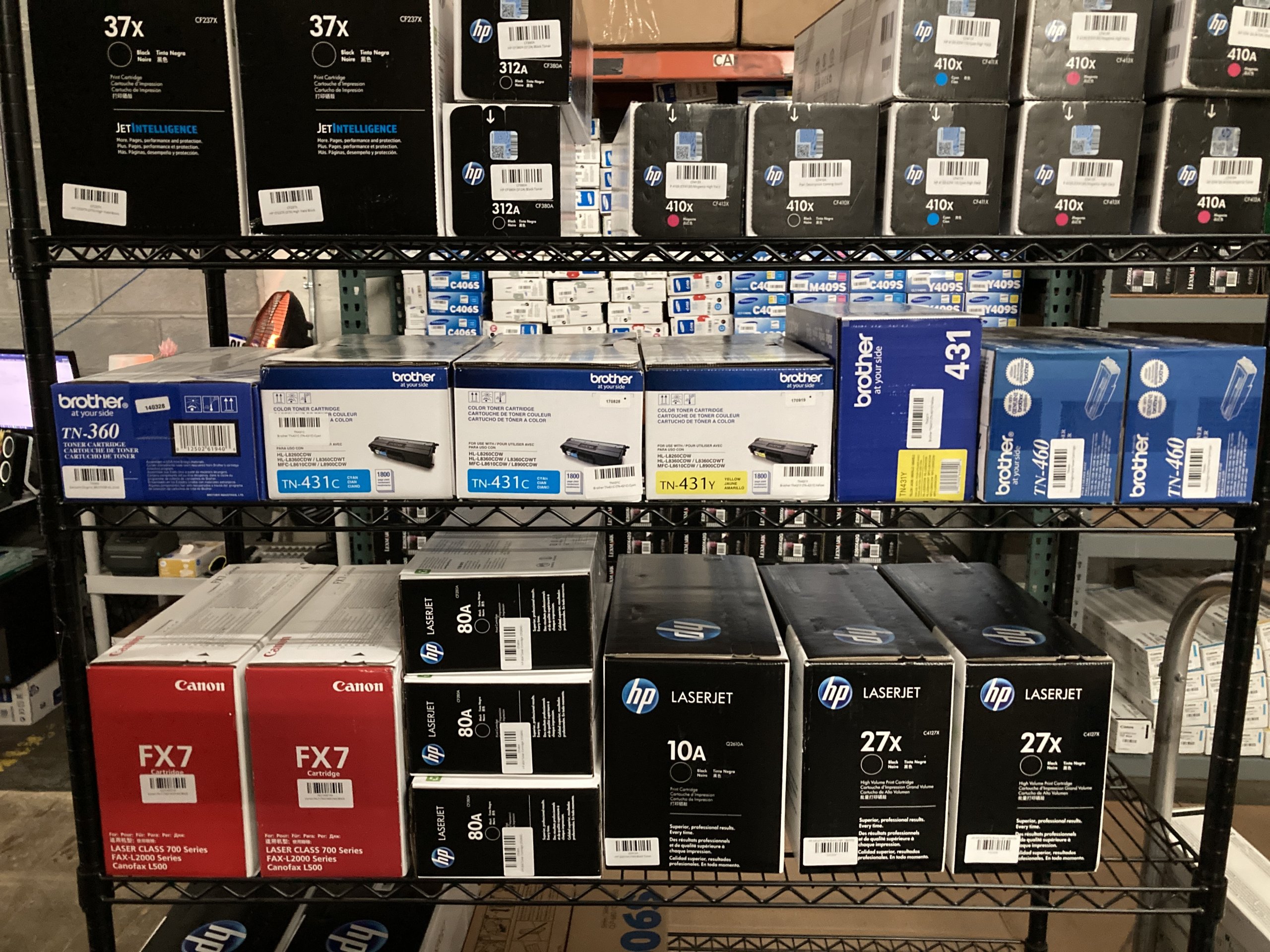
An IT department can end up with unopened toner that no longer fits any active printer.
What 2026 Facts Matter When Replacing and Managing Brother Toner?
Current 2026 guidance reinforces the distinction between replacing used toner and managing unused surplus cartridges.
Three useful facts provide context:
- Brother currently treats toner cartridges and drums as separate consumables on supported models.
- Brother’s current support guidance says Toner Low indicates that toner is approaching end of life on supported models.
- Toner Connect’s August 24, 2026 guide identifies Brother among the OEM toner brands that businesses may encounter as surplus inventory.
The third fact applies to unused surplus toner, not the spent cartridge removed from your printer.
What Should You Do With the Old Brother Toner Cartridge?
Follow an appropriate manufacturer, remanufacturer, or recycling route for a spent cartridge rather than treating an empty cartridge as unused resale inventory.
A spent toner cartridge and an unopened surplus cartridge are different products.
If your cartridge has already been used, check Brother’s current recycling or return options for your region.
If the cartridge is still factory sealed and unused, resale may be another possibility.
Can You Sell an Unused Brother Toner Cartridge Instead?
An unused factory-sealed OEM Brother cartridge may have resale potential if you no longer own a compatible printer.
This situation often occurs after printer upgrades or office inventory changes.
Toner Connect’s December 13, 2025 guide specifically discusses resale options for unused Brother toner cartridges.
Toner Connect’s August 24, 2026 resale guide recommends recording the exact model, confirming OEM status, checking factory seals, and documenting packaging condition before requesting a quote.
You can visit Toner Connect to check whether qualifying factory-sealed Brother toner is eligible for buyback.
Do not send a used cartridge to a buyer expecting unused toner.
What Mistakes Should You Avoid When Replacing Brother Toner?
Avoid replacing the wrong component, forcing cartridges, touching sensitive surfaces, or following reset instructions written for another printer.
Brother’s own documentation repeatedly distinguishes the toner cartridge from the drum unit.
Common mistakes include:
- Replacing the drum instead of the toner.
- Buying toner without checking the exact model.
- Forgetting to remove protective materials.
- Installing the toner without locking it into the drum.
- Leaving the corona-wire tab away from its Home position.
- Resetting the drum counter after a toner-only replacement.
- Using instructions for a different Brother printer.
- Opening spare toner long before it is needed.
Model-specific instructions should always take priority over a general guide.
What Questions Do Users Ask About Brother Toner Replacement?
Users commonly ask about toner warnings, drum replacement, cartridge recognition, and whether a reset is necessary.
These questions are worth answering separately because Brother printer architectures and messages vary.
Can You Replace Brother Toner Without Replacing the Drum?
Yes, many Brother printers allow the toner cartridge to be replaced separately from the drum.
Brother specifically instructs users to replace only the toner when supported machines display Replace Toner.
The drum has its own replacement procedure.
Do You Need to Turn Off a Brother Printer Before Changing Toner?
Not necessarily, because several Brother replacement procedures specifically begin with the printer turned on.
Brother‘s DCP-L2550DW and HL-L9470CDN replacement instructions tell users to make sure the machine is turned on.
Always follow your exact model’s instructions.
Can You Keep Printing When a Brother Printer Says Toner Low?
Some Brother models allow printing to continue after Toner Low until the machine reaches its Replace Toner condition.
Brother documents this behavior for models covered by its current Toner Low support article.
This behavior should not be assumed for every Brother printer.
Should You Shake a New Brother Toner Cartridge?
Shake or redistribute toner only when the instructions for your exact cartridge or printer tell you to do so.
Some Brother manuals instruct users to hold a new cartridge level and gently move it from side to side before installation.
Other replacement pages do not specify the same step.
What Is the Safest Way to Replace a Brother Toner Cartridge?
Identify your exact Brother printer and toner model, follow the manufacturer’s replacement sequence, and replace only the consumable that the printer indicates needs attention.
For many Brother monochrome models, replacement involves removing the toner-and-drum assembly, releasing the depleted toner, locking the new toner into the drum, cleaning the corona wire where required, and reinstalling the assembly.
The biggest rule is simple: do not assume every Brother printer works exactly the same way. Model-specific Brother documentation should be your final reference.
If a printer upgrade leaves you with unused, factory-sealed OEM Brother toner, do not confuse it with the spent cartridge you just removed. Qualifying surplus cartridges may have resale potential through Toner Connect rather than being treated as used toner.