
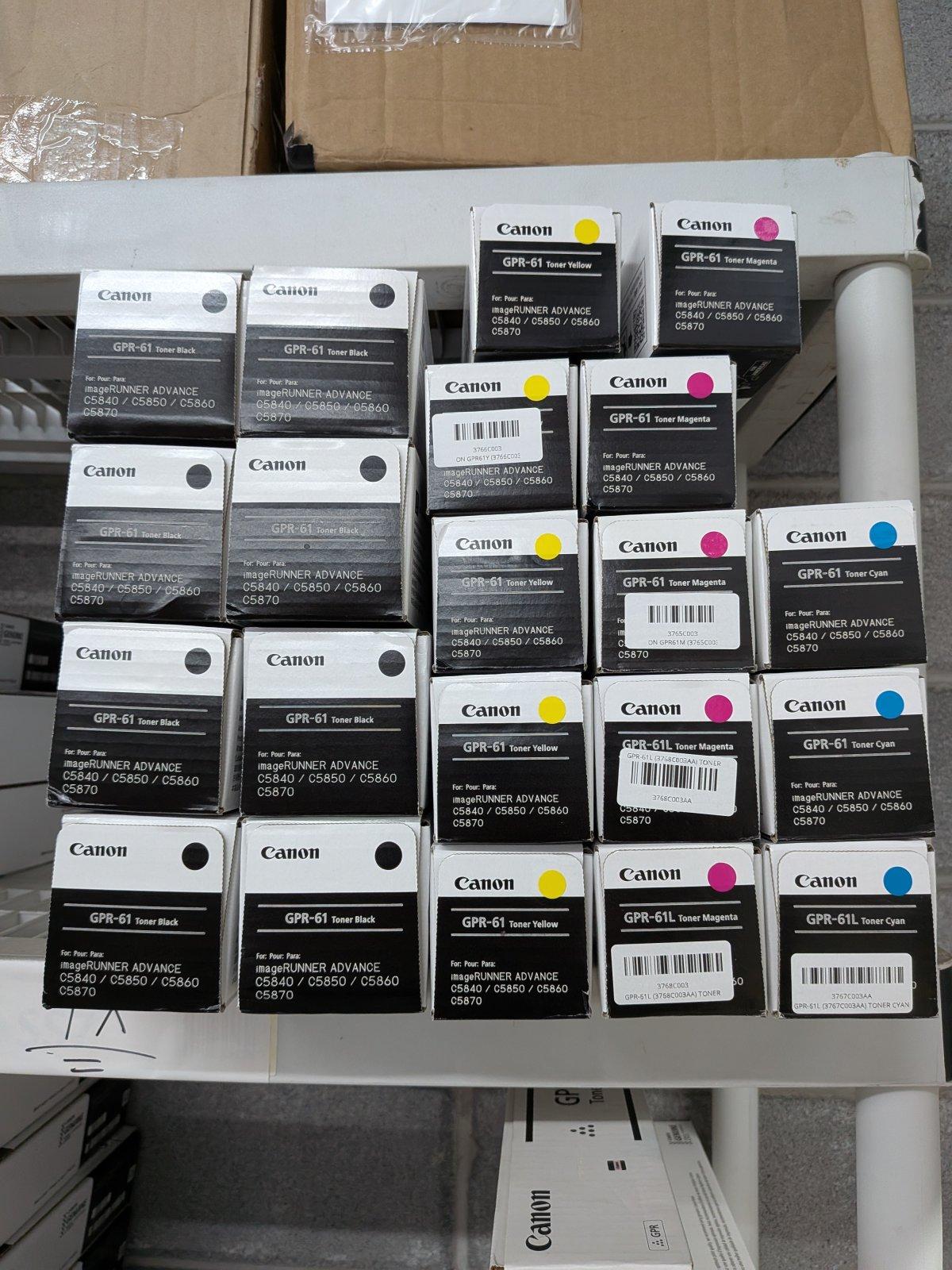
How to Remove a Cartridge From a Printer?
To remove a cartridge from a printer, stop any active print job, open the correct cartridge-access cover, wait for moving parts to stop, release the cartridge using its latch or lever, and lift or pull it out carefully. Inkjet and laser printers use different mechanisms, so model-specific instructions should always come first.
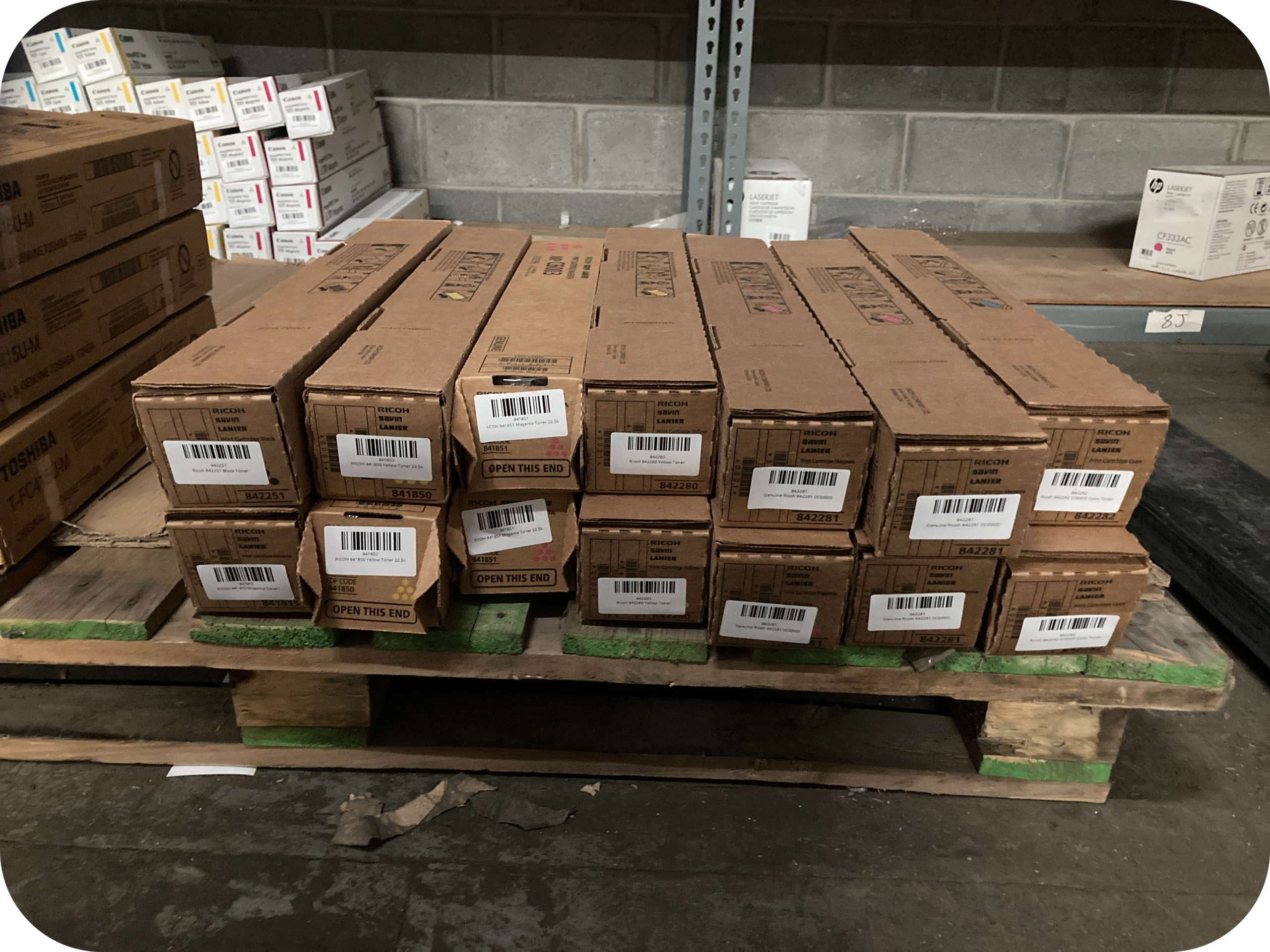
Where Is the Cartridge Located in Your Printer?
The cartridge is usually behind a front, top, side, or dedicated cartridge-access cover.
Inkjet printers may place ink cartridges behind a side or internal access panel. HP currently documents models where cartridges are accessed behind left- or right-side covers.
Many Brother laser printers place the toner behind the front cover. The toner may also be connected to a separate drum unit.
Useful definitions:
- Ink cartridge: A replaceable container holding liquid ink.
- Toner cartridge: A replaceable supply containing toner powder.
- Carriage: The mechanism that holds ink cartridges in many inkjet printers.
- Drum unit: An imaging component used with toner in some laser printers.
- Access cover: The printer panel opened to reach cartridges.
Never force a printer panel that does not open normally.
What Should You Do Before Removing a Cartridge From a Printer?
Stop printing and verify the correct removal procedure before touching the cartridge.
HP specifically warns users not to remove an ink cartridge while the printer is printing.
HP also advises removing a cartridge only when you are ready to replace it on the products covered by its guidance.
Before starting:
- Finish or cancel active printing.
- Check the exact printer model.
- Read the printer display.
- Keep a replacement cartridge nearby if needed.
- Prepare a clean work surface.
- Review the manufacturer’s instructions.
These steps are especially useful for first-time users.
How Do You Remove an Ink Cartridge From a Printer Step by Step?
Open the ink-cartridge compartment, release the required cartridge, and remove it using the direction specified for your printer.
HP’s current instructions for certain large-format printers direct users to open the cartridge cover, grip the cartridge, and pull it straight upward.
Step 1 — Should You Stop the Printer First?
Yes, you should make sure the printer is not actively printing before cartridge removal.
HP explicitly cautions against removing an ink cartridge during printing.
Some printers should remain powered on during the replacement process.
Follow the power-state instructions for your exact model.
Step 2 — How Do You Open the Cartridge Access Area?
Open only the cover identified for ink-cartridge access.
Depending on the printer, this may be under the scanner, behind a front door, or behind a side cover.
HP documents printers with cartridge covers located on the left or right side of the device.
Do not remove screws or service panels unless the manufacturer specifically instructs you to.
Step 3 — How Do You Release the Ink Cartridge?
Use the cartridge’s intended latch, grip, or release mechanism rather than pulling with excessive force.
HP’s removal instructions for supported printers tell users to grip the cartridge and pull it straight upward.
Other inkjet designs may use clips or spring-loaded cartridges.
If the cartridge feels locked, stop and check the manual.
Step 4 — Where Should You Hold an Ink Cartridge?
Hold the cartridge by its plastic body or designated grip areas.
HP warns users to avoid touching the end of certain cartridges that inserts into the printer because ink can remain on the connection.
Avoid touching electrical contacts and ink-delivery areas.
Place a removed cartridge on a protected surface if necessary.
How Do You Remove a Toner Cartridge From a Laser Printer?
Open the laser printer’s access cover and remove either the toner itself or the toner-and-drum assembly, depending on the printer design.
Many Brother printers require the toner cartridge and drum unit to be removed together first.
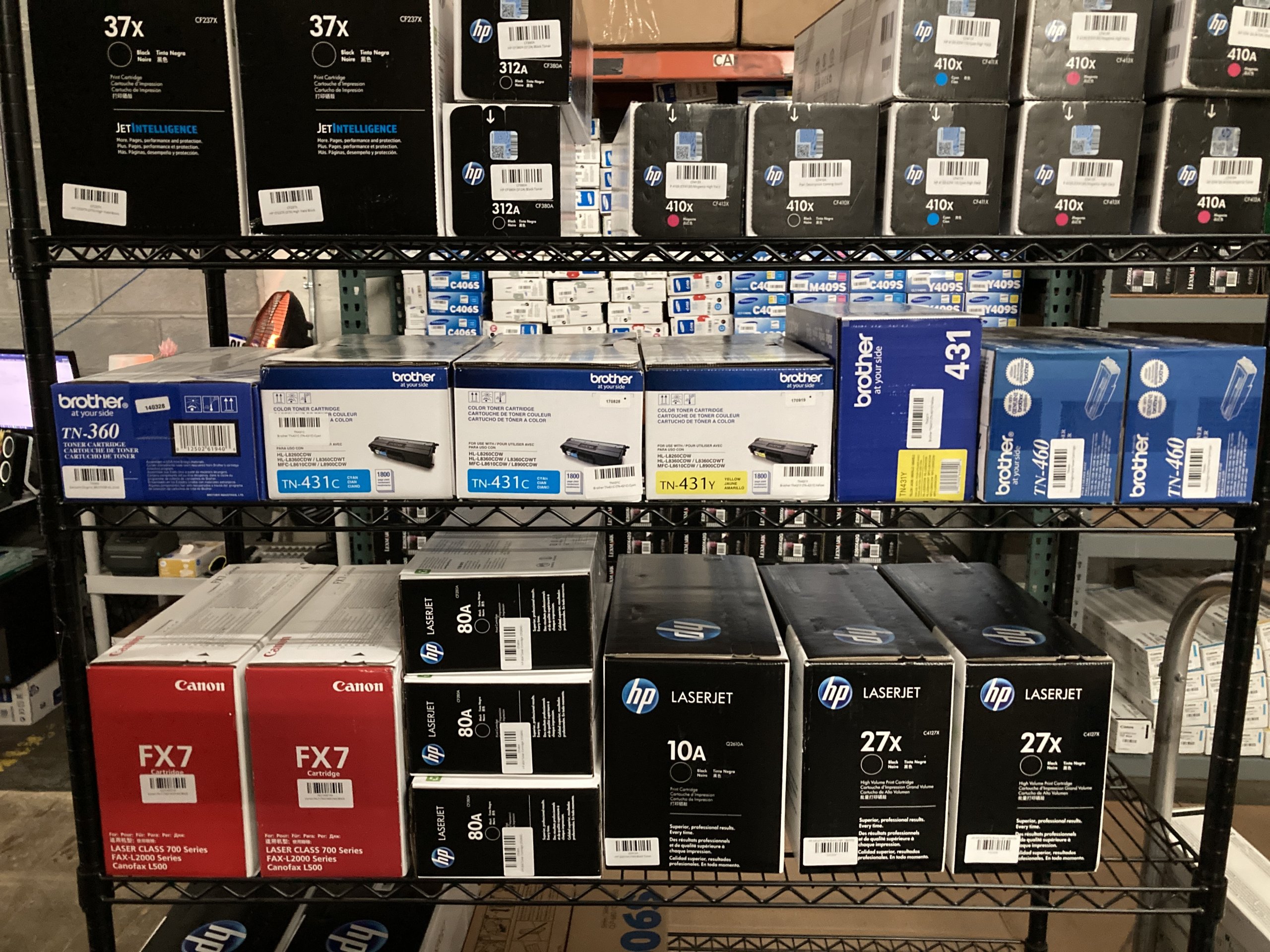
Step 1 — How Do You Access the Toner Cartridge?
Open the front or top cover specified by your laser printer’s manufacturer.
Brother’s MFC-L2710DW family uses a front cover for toner-and-drum access.
Other printer families can use a top-access design.
Step 2 — Why Might the Drum Come Out With the Toner?
Some laser printers connect the toner cartridge to a separate drum assembly during normal operation.
Brother specifically identifies the toner and drum as separate consumables on supported models.
The entire assembly may need to come out before the toner can be released.
Removing the drum does not automatically mean the drum needs replacing.
Step 3 — How Do You Separate Toner From the Drum?
Use the lock lever specified by the manufacturer and lift the cartridge from the drum.
Brother’s supported monochrome models use a green lock lever for this operation.
Brother’s current color-printer instructions also show toner cartridges being lifted individually from a larger drum assembly.
Place the assembly on disposable paper before separating it.
Step 4 — What Should You Avoid Touching?
Quick Answer: Avoid touching imaging surfaces, electrical contacts, and areas marked as sensitive in the printer documentation.
Brother warns users on applicable models to avoid touching designated parts because toner can stain hands or clothing.
Handle toner by its intended handle whenever possible.
How Do You Remove a Cartridge From a Color Laser Printer?
Remove only the toner color that needs attention unless the manufacturer’s procedure requires access to the entire drum assembly.
Brother’s HL-L9470CDN uses separate K, C, M, and Y toner positions.
Those letters represent:
- K — Black
- C — Cyan
- M — Magenta
- Y — Yellow
Brother’s 2023 instructions for that model use a 10-step toner replacement procedure that includes pulling out the drum assembly, removing the selected toner, and reinstalling it correctly.
Your color printer may use a different design.
Why Won’t the Cartridge Come Out of the Printer?
A cartridge usually stays stuck because a latch is still engaged, the cover is not fully open, or the printer is not in the correct service position.
Brother notes on some printers that a cover must be completely opened or the toner-and-drum assembly can be difficult or impossible to remove.
If a cartridge seems stuck:
- Stop pulling.
- Check for a lock lever.
- Check whether the cover is fully open.
- Wait for moving mechanisms to stop.
- Verify the cartridge-removal direction.
- Consult the exact model manual.
Do not use tools to pry out a cartridge unless the manufacturer explicitly instructs you to.
Should You Turn the Printer Off Before Removing a Cartridge?
Not always, because power requirements differ among printer models.
Brother’s MFC-L2710DW replacement procedure begins with the machine turned on.
An older Brother HL-3045CN procedure tells users to turn the printer off before accessing its drum assembly.
This contrast illustrates why generic advice such as “always unplug the printer first” is unreliable.
Use the instructions for your specific printer.
What Should Home Users Know About Removing a Cartridge?
Home users should have the correct replacement cartridge ready before removing the installed supply.
HP advises users on supported products to remove an ink cartridge only when another cartridge is ready to be inserted.
This is helpful for home offices, students, and remote workers who may not have immediate access to another printer.
Check the replacement cartridge number before opening the printer.
What Should Offices and IT Teams Do With Cartridge Removal?
Offices should document printer and cartridge models so employees do not remove or replace the wrong supply.
A simple IT record can contain:
Printer model → cartridge SKU → ink/toner → drum SKU → location
This becomes particularly valuable when an organization operates several printer brands.
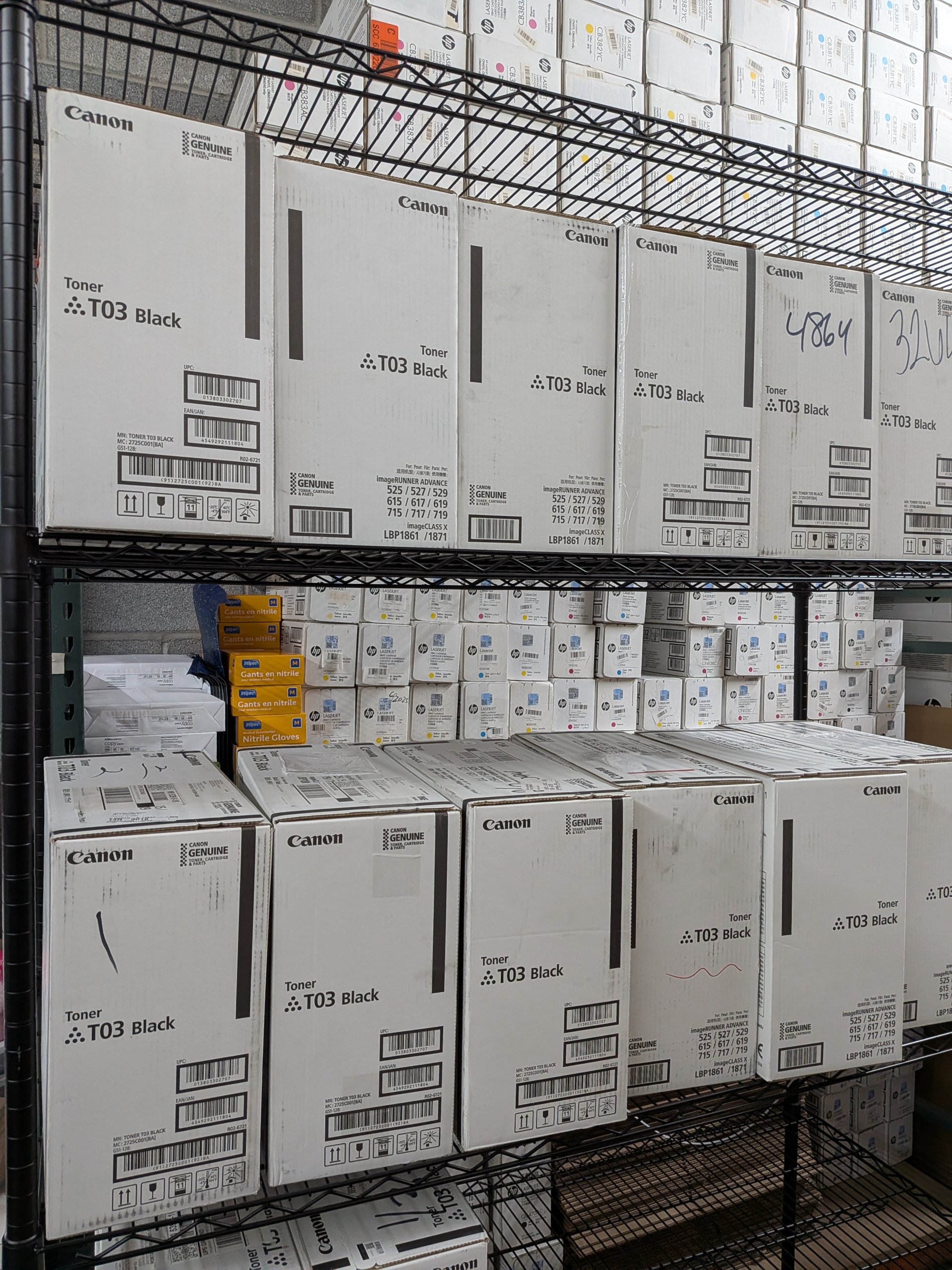
Printer upgrades can also leave unopened toner that no longer fits active equipment. Toner Connect’s September 2026 surplus guide recommends inventorying those supplies before deciding whether to reuse, sell, or recycle them.
What Should Schools Do When Removing Printer Cartridges?
Schools should separate used cartridges from unopened inventory during printer maintenance or fleet replacements.
Used cartridges may need recycling or manufacturer take-back.
Factory-sealed toner may still be compatible with another printer in the district.
For larger inventories, track:
- School or building
- Printer model
- Cartridge SKU
- Used or unused condition
- Quantity
This prevents usable cartridges from accidentally entering a recycling collection.
What Should You Do With the Cartridge After Removing It?
The next step depends on whether the cartridge is empty, partially used, or still factory sealed.
A simple decision guide is:
| Cartridge condition | Practical next step |
|---|---|
| Empty or spent | Manufacturer return or recycling |
| Partially used | Reinstall or follow manufacturer storage guidance |
| Faulty | Warranty/service guidance |
| Unopened and compatible | Keep for future use |
| Unopened but no longer needed | Evaluate transfer or resale |
HP notes that partially used cartridges can sometimes be used later, although its guidance also cautions against storing them unnecessarily.
Can an Unused Cartridge Be Sold Instead of Recycled?
Yes, qualifying factory-sealed OEM toner that is no longer needed may have resale potential.
Toner Connect’s September 16, 2026 surplus-toner guide recommends confirming the exact model, factory seal, OEM status, quantity, and box condition before seeking resale.
Its August 24, 2026 resale guide also identifies printer upgrades, office closures, and over-ordering as common reasons organizations have surplus toner.
Useful TonerConnect resources:
Cartridges in Printer: Where Are They Located and How Do You Remove Them?
Surplus Toner: What to Do With Unused Toner Cartridges
A used cartridge should not be presented to a buyer as factory-sealed inventory.
What Common Mistakes Should You Avoid When Removing a Cartridge?
Avoid forcing the cartridge, removing it during printing, touching sensitive surfaces, and confusing toner with the drum.
The most common mistakes include:
- Pulling before releasing a latch.
- Removing ink during an active print job.
- Touching ink contacts.
- Touching drum surfaces.
- Forcing a toner-and-drum assembly.
- Replacing the drum when only toner is depleted.
- Using instructions for another printer model.
- Leaving a printer open longer than necessary.
HP explicitly advises against removing ink during printing.
Brother explicitly distinguishes toner cartridges from separate drum units.
What Is the Safest Way to Remove a Cartridge From a Printer?
Stop active printing, identify your exact printer model, open the correct access cover, release the cartridge using its intended mechanism, and never force a component that does not move normally.
Ink and toner systems are fundamentally different. HP documents ink cartridges that pull directly from their cartridge compartment, while Brother documents laser systems where toner may first come out with a separate drum unit.
The best rule is simple: when removing a cartridge from a printer, follow the mechanism instead of fighting it. If a cartridge will not release with normal pressure, check the manufacturer’s instructions before trying again.